
Your backup does not depend on us
Every backup is a single ZIP file encrypted with AES-256. Even if your computer, your license and this program are all gone, you open the file with 7-Zip and get to your data.
 BayPro Backup SuiteSystem Tools
Back up your folders, network shares and SQL Server databases wherever you like, from a USB drive to a NAS, from SFTP to Google Drive and OneDrive. Every backup is a single AES-256 encrypted ZIP file: even if your computer and our software are gone, you open your backup with 7-Zip and get to your data.
Most backup software considers the job done once it says "files copied." The real test, however, comes months later: when a disk fails, when a folder is accidentally deleted, or when ransomware strikes. At that moment there is only one question — does the backup I have actually open, and is everything in it? BayPro Backup Suite was designed so you can answer that question with a confident "yes."
What do you back up? You choose the type of job in the very first step:
Where do you back up to? You are not tied to a single location. The same job can write to multiple destinations at once: a folder on your computer, a USB drive you plug in, a network share or NAS device in the office, a remote SFTP or FTP server, or your Google Drive or OneDrive account. A serious backup strategy starts with keeping data in at least two separate places; the program lets you do this with a single job definition.
Your backup belongs to you, not to the program. By default, every backup is a single dated ZIP file encrypted with AES-256. Even if your computer, your license and this program are all gone, you can open the remaining file with 7-Zip or WinRAR and get to your data. A design in which you need our software to read your backup is not a backup — it is a dependency.
Nothing is silently skipped. If a file cannot be read, a folder is skipped or a transfer is left incomplete, it tells you; if a critical database file cannot be read, it stops the job instead of reporting it as successful. During a restore, your existing folder is not deleted but set aside — if something goes wrong, it is put back in place. A partial restore does not count as a success.
Install it, define the job once and leave the rest to the program: it runs daily or weekly, takes the backup as a Windows service even when you are not logged in, cleans up old versions according to the policy you set, and keeps the result of every run in the history.
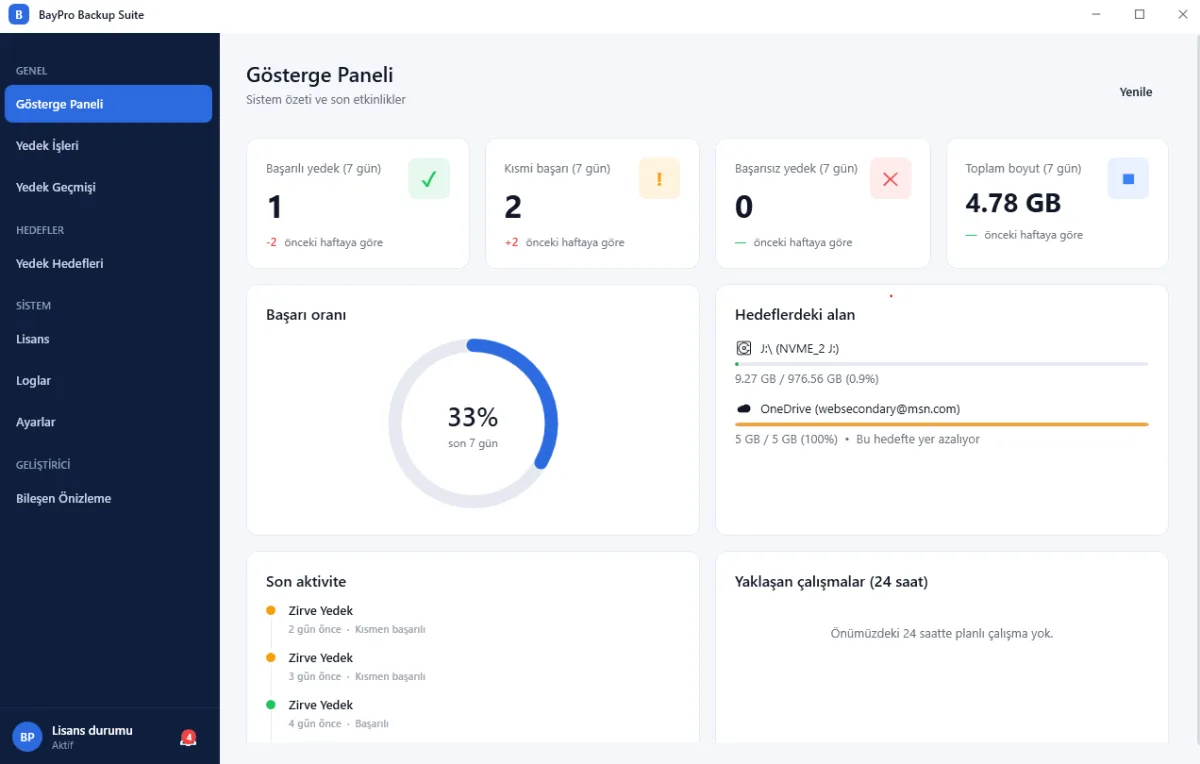
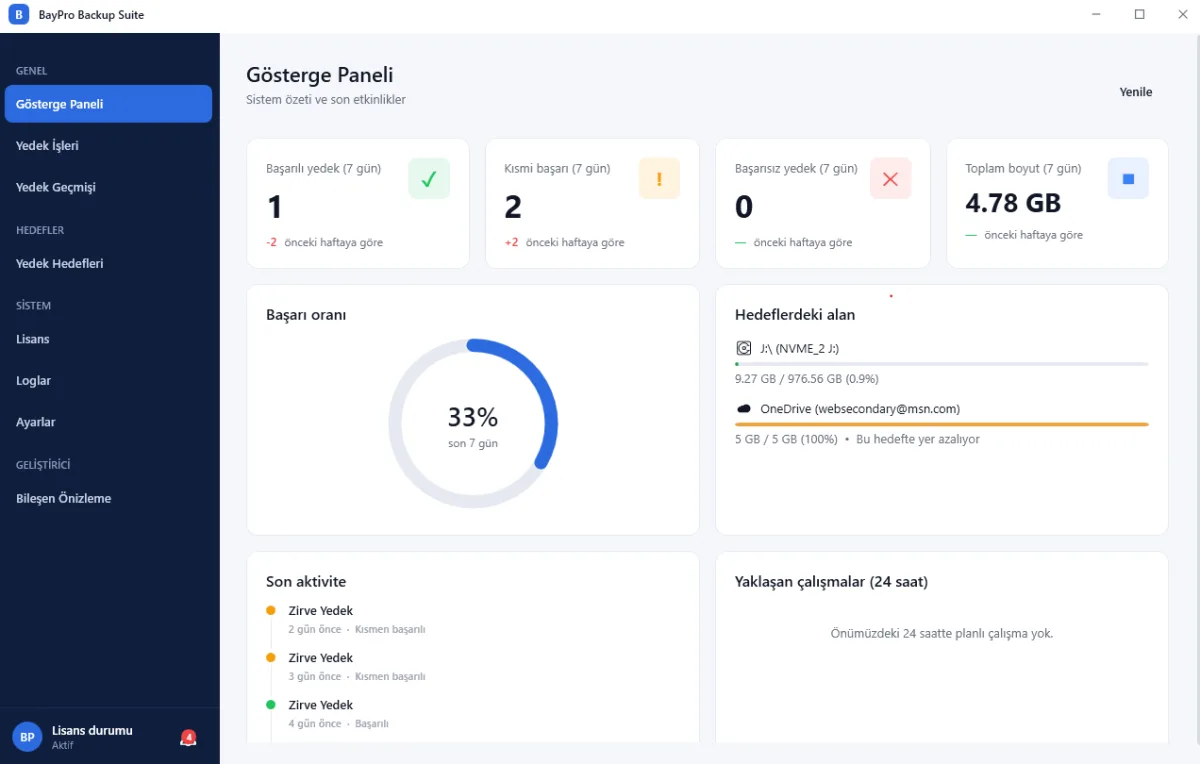
The first thing you see when you open the program is the answer to the question you care about most: were the latest backups taken? Successful, partially successful and failed runs are counted separately — because a "partially successful" backup is not something to hide behind a green check mark. If something was left out, you find out the same day, not on the day you need the backup.
The free space on your destinations is on the same screen. When a disk or cloud account starts filling up, you are warned before your backups stop. Recent runs, jobs scheduled for the next 24 hours and the weekly success rate are here too. You never have to open a log file to understand what is going on.
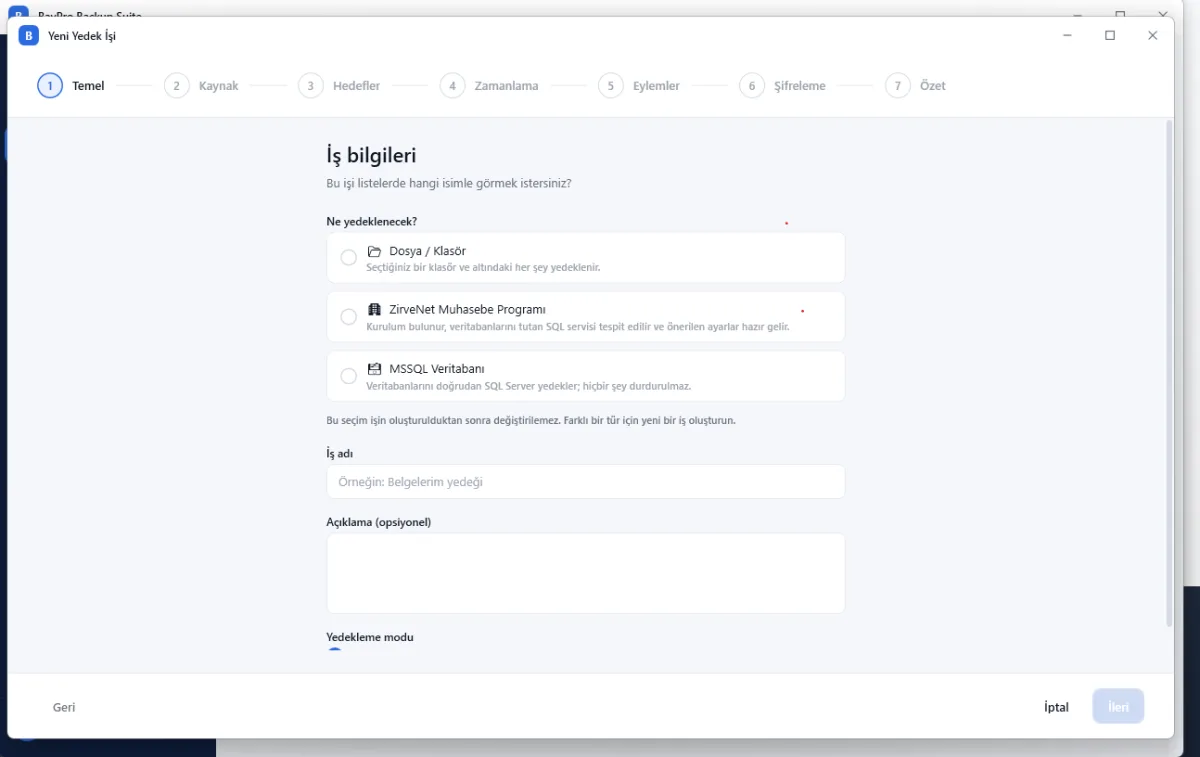
Creating a new backup job takes just seven steps that guide you by the hand: choose what to back up, set the source and destinations, say when it should run, configure pre- and post-backup actions if needed, turn on encryption, and confirm the summary. No step requires you to memorize technical terms; what each option does is written right next to it.
In the first step you tell it what to back up, and the rest of the wizard adapts accordingly. If you chose a folder, you go straight to file selection. If you chose MSSQL, the list of servers and databases appears; databases are backed up while they keep running, and no service is stopped. If you chose a recognized application — for example, ZirveNet Accounting Software — the program finds the installation itself, detects the SQL service holding the databases and presents recommended settings: folders to exclude already checked, the service to stop already selected, the databases to back up already listed. All you have to do is confirm.
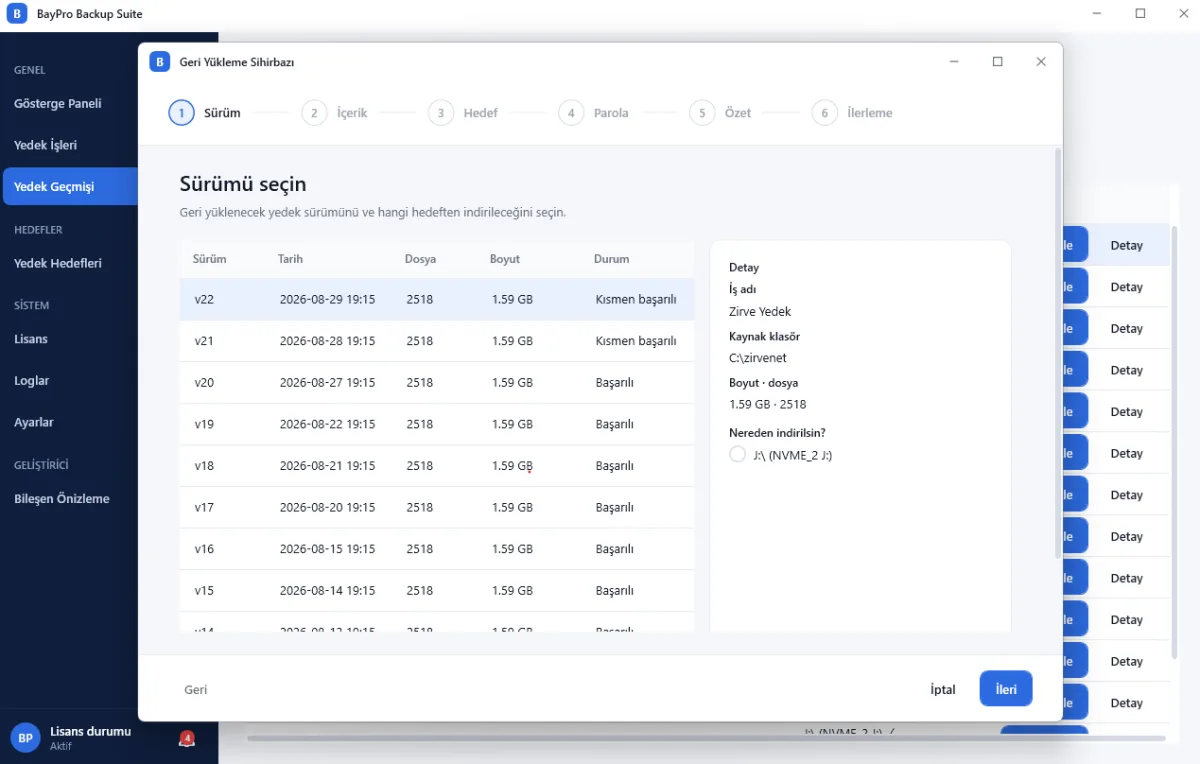
The Backup History screen shows the date of every run, how many files it contains and how much space it takes up. You pick the day you want to go back to from the list; you can return to last night's state or to three weeks ago. If the same backup was written to multiple destinations, you also decide which one to download from — if the USB drive is not with you or a server cannot be reached, you continue from another.
You do not have to restore everything. You see what is inside the backup and select only the folder you are looking for — or even a single file. You also decide where it is written: you can extract it to another folder without having to overwrite the original, and look at the contents first. Even if you choose to overwrite, your existing folder is not deleted but set aside; if something goes wrong, it is put back exactly as it was. When the operation finishes, you see in numbers how many files were written and what, if anything, could not be written — an incomplete restore is never shown as "successful" here.
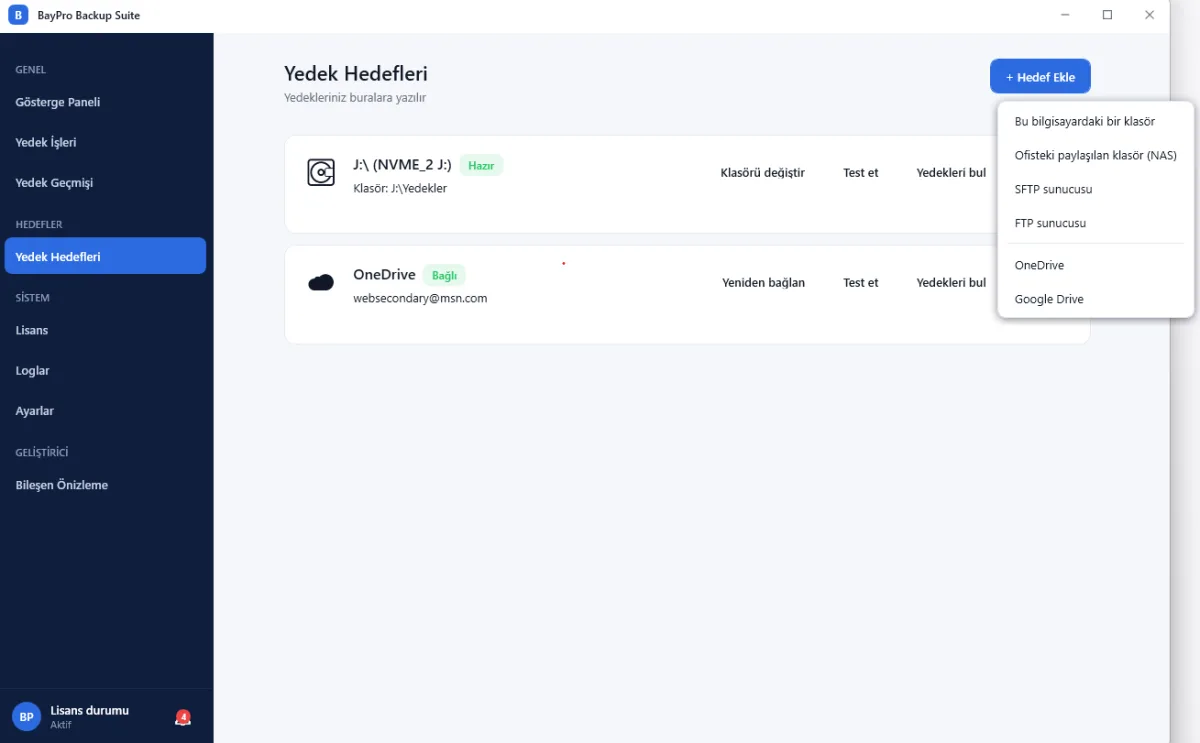
Software should not decide whether your backup is written to the cloud or to a disk in the office — that is a choice about your data. All six destination types are supported in the same way: a folder on this computer, a USB drive you plug in, a shared folder or NAS device in the office, a remote SFTP or FTP server, OneDrive and Google Drive. They all sit side by side in the same list, and a single job can write to several of them at once. The best-known rule of backup is to keep data in at least two separate places, one of them off-site; you set this up with a single job definition.
You do not have to guess when adding a destination. "Test" tries the connection and write permission on the spot and tells you the result — no surprises on the first real backup. If a cloud account's authorization lapses over time, the account turns red in the list and is fixed in one step with "Reconnect"; you do not have to set up your jobs from scratch. Most importantly: if your computer is gone completely, you install the program on the new machine and add the same destination. "Find backups" scans and lists the backups stored on that destination. You can restore even if nothing is left from the old computer.
It takes just a few minutes from installation to your first backup. After that it runs on its own — you only come back when you need to.
A folder, a SQL Server database or a recognized application. If you choose an application, the installation, service and databases come preconfigured.
USB drive, network share, NAS, SFTP or FTP server, Google Drive, OneDrive. You can send the same backup to multiple places at once.
It runs daily or weekly. Even when you are not logged in, the Windows service takes the backup and cleans up old versions according to the policy you set.
The value of backup software shows on the worst day. Every decision in this product was made with that day in mind.
Every backup is a single ZIP file encrypted with AES-256. Even if your computer, your license and this program are all gone, you open the file with 7-Zip and get to your data.
If a file cannot be read or a folder is skipped, you are told. If a critical database file cannot be read, the job stops instead of reporting a false success.
Your existing folder is not deleted but set aside. If something goes wrong, it is put back exactly as it was. No irreversible action is taken without your approval.
A partially completed backup is not hidden behind a green check mark; it is counted separately and shown to you.
USB drive, network share and NAS, SFTP, FTP, Google Drive, OneDrive. Send the same backup to multiple places at once.
SQL Server databases are backed up consistently without stopping the service, while the system keeps running.
It installs as a Windows service; the scheduled backup is taken even if no one is logged in. A run missed while the computer was off is caught up later.
For recognized programs such as ZirveNet, the installation, the service to stop and the databases are found automatically. No configuration needed.
Click an image to enlarge it.
For anyone who cannot afford to lose their data but cannot hire a full-time system administrator for it. It runs every day in offices and teams like these:
Packages are priced per device. The license key is a one-time purchase and can be used for life. You can transfer your license to another device at any time. Your license key and download links are sent automatically at the end of your purchase. You can start using it right away.
Renewal is optional. If you do not renew, you only lose access to updates. You can keep using the program.
Answers to everything you might be wondering about are here. If there is a question you cannot find, write to us and we will add it.
42 questionsWrite to our team and we will get back to you shortly.
Contact usNo question matches this search. Try a different word.